We have all experienced that moment when we send a text and immediately wish we could take it back. Maybe you sent a message to the wrong person, noticed an embarrassing typo, or changed your mind about something you shared. Fortunately, Apple offers a way to undo certain recently sent iMessages.
If you are wondering how to unsend a message on iMessage, the process is simple: open the conversation, touch and hold the message bubble, and select Undo Send. However, you only have two minutes to unsend a message, and there are a few important limitations to understand.
Apple Support
+1
In this guide, I will walk you through the steps for iPhone, iPad, and Mac, explain what happens on the recipient’s device, and help you troubleshoot when the option is missing. You will also learn what to do if the two-minute window has already passed.
How to Unsend a Message on iMessage on iPhone
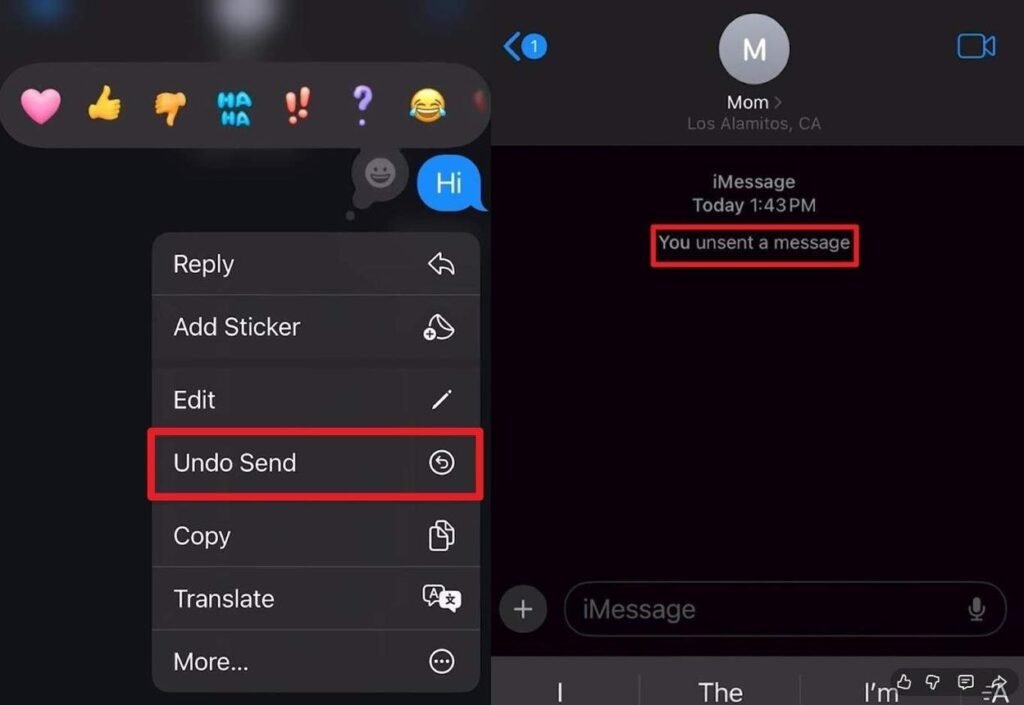
To unsend an iMessage on your iPhone, follow these steps as soon as possible after sending the message. The Undo Send feature works for eligible iMessages on iOS 16 or later.
Apple Support
+1
- Open the Messages app on your iPhone.
- Select the conversation containing the message you want to remove.
- Find the specific message bubble you sent.
- Touch and hold the message bubble until the action menu appears.
- Look for the Undo Send option in the menu.
- Tap Undo Send before the two-minute deadline expires.
- Check the conversation to confirm the original message has been withdrawn from your chat.
- Look for the unsent-message notice that replaces the original message.
- Remember that the recipient may also see a notice that you unsent a message.
- If the original text was sensitive, remember that the recipient may already have read it or seen a notification preview.
Apple Support
+2
How to Unsend an iMessage on iPad
The process on an iPad is similar to the iPhone. You need a supported version of iPadOS and an eligible iMessage that was sent within the last two minutes.
Apple Support
+1
- Open Messages on your iPad.
- Choose the conversation where you sent the message.
- Locate the message you want to withdraw.
- Touch and hold the message bubble.
- Wait for the available message actions to appear.
- Tap Undo Send if the option is available.
- Act quickly because the unsend window lasts only two minutes.
- Check the conversation for the unsent-message notice.
- Remember that the recipient may still see the original message on an older Apple operating system.
- If Undo Send is unavailable, consider sending a follow-up message to clarify what you meant.
Apple Support
+1
How to Unsend an iMessage on Mac
You can also unsend a recently sent iMessage using the Messages app on a Mac running macOS Ventura or later. The two-minute time limit applies here, too.
Apple Support (SA)
+1
- Open the Messages app on your Mac.
- Select the conversation containing your sent message.
- Find the message bubble you want to remove.
- Control-click the message or use the equivalent right-click action.
- Look for Undo Send in the contextual menu.
- Select Undo Send before the time limit expires.
- Check the conversation to see whether the unsent-message notice appears.
- Make sure you selected the correct message before confirming the action.
- Remember that the recipient may still see the original message if their software is too old.
- If the message cannot be unsent, send a short correction or clarification instead.
Apple Support (SA)
+1
How Long Do You Have to Unsend an iMessage?
Apple allows you to unsend a recently sent iMessage for up to two minutes. This is different from editing a message, which has a longer time window.
Apple Support
+1
- Start the unsend process immediately if you notice a mistake.
- Remember that the two-minute limit begins when you send the message.
- Do not confuse the unsend deadline with the editing deadline.
- Use Undo Send for a message you want to withdraw entirely.
- Use Edit if you only need to correct the wording.
- Remember that editing is available for up to 15 minutes after sending.
- Keep in mind that Apple permits up to five edits to an eligible message.
- Check whether the appropriate option is still available in the message menu.
- If two minutes have passed, look for Edit if the message is still within its editing window.
- If neither option is available, send a follow-up message explaining the correction.
Apple Support
+1
What Happens When You Unsend an iMessage?
Unsending an iMessage removes the original message from the conversation on supported devices, but it does not guarantee that nobody has seen or saved its contents. Apple also makes the unsend action visible in the conversation.
Apple Support
+1
- The original message is withdrawn from a compatible recipient’s conversation.
- Your conversation displays a notice indicating that you unsent a message.
- The recipient can see that a message was unsent.
- The original text may already have appeared in a notification preview.
- The recipient may have read the message before you withdrew it.
- Someone could have taken a screenshot before the message disappeared.
- A recipient using an older operating system may still see the original message.
- Unsending does not guarantee that every copy of the message is erased.
- You should not assume that the recipient will never know what you sent.
- If the message caused confusion, a brief explanation may help clear things up.
Apple Support
+2
Why Can’t I Unsend a Message on iMessage?
If you cannot find the Undo Send option, the message type, time limit, or software version may be the reason. Checking these factors can help you identify the problem.
Apple Support
+1
- Check whether you sent the message less than two minutes ago.
- Confirm that the conversation is using iMessage rather than ordinary SMS, MMS, or RCS.
- Look at the message bubble color as a quick clue: blue generally indicates iMessage, while green indicates another messaging method.
- Check whether your iPhone or iPad is running iOS 16 or a later compatible version.
- If you are using a Mac, confirm that it runs macOS Ventura or later.
- Touch and hold the actual sent message bubble rather than the conversation itself.
- Make sure you are selecting your own sent message.
- Check whether the option appears in the contextual menu.
- If the unsend window has passed, see whether Edit is still available.
- If neither feature is available, send a follow-up text instead of assuming the original can still be removed.
Apple Support
+1
Can You Unsend an iMessage After Two Minutes?
Once the two-minute unsend window has expired, Apple does not provide a standard way to unsend that message. You may still be able to edit it during the separate 15-minute editing window.
Apple Support
+1
- Check the message menu to see whether Edit is still available.
- Remember that the editing window lasts up to 15 minutes after sending.
- Use Edit to correct a typo or replace wording rather than remove the entire message.
- Remember that you can edit an eligible message up to five times.
- Check the edited message carefully before submitting the changes.
- Keep in mind that the recipient can see that the message was edited.
- Remember that compatible recipients may be able to view earlier versions of an edited message.
- If the message is no longer editable, send a correction in a new message.
- If you sent it to the wrong person, politely ask them to disregard it.
- Avoid relying on deleting the conversation from your own device to remove the recipient’s copy.
Apple Support
+2
How to Edit an iMessage Instead of Unsending It
Editing is useful when your message is mostly correct but contains a typo, incorrect detail, or wording you want to change. Apple allows eligible iMessages to be edited within 15 minutes of sending.
Apple Support
+1
- Open the Messages app and select the relevant conversation.
- Find the message you want to correct.
- Touch and hold the message bubble on your iPhone or iPad.
- Tap Edit when the option appears.
- Replace the incorrect words with your intended wording.
- Review the entire message before submitting the changes.
- Tap the confirmation control to save and resend the edited text.
- Remember that the conversation marks the message as edited.
- Keep in mind that you can edit an eligible message up to five times.
- If you need the message gone entirely, use Undo Send instead, provided the two-minute limit has not passed.
Apple Support
+1
Does Unsending an iMessage Work With Green Bubbles?
Not for ordinary SMS, MMS, or RCS messages. Apple’s standard Undo Send feature is designed for iMessage, so a green bubble generally means you cannot use this feature on that message.
Apple Support
+1
- Check the bubble color before trying to unsend a message.
- Remember that blue bubbles generally represent iMessages.
- Understand that green bubbles can represent SMS, MMS, or RCS, depending on your settings and conversation.
- Do not assume that every green-bubble message can be withdrawn.
- Check whether Undo Send appears when you touch and hold the message.
- If the option is missing, the message may not be eligible for unsending.
- Remember that deleting a green-bubble message from your phone does not delete the recipient’s copy.
- Send a correction if the original text contains an error.
- Politely ask the recipient to disregard the message if it was sent by mistake.
- Before sending sensitive information, double-check the recipient and message content.
Apple Support
+1
How to Handle an iMessage Sent to the Wrong Person
Sending a message to the wrong contact can feel stressful, especially if the content was private or intended for someone else. If you notice the mistake quickly, try Undo Send first, then consider whether a follow-up explanation is needed.
- Open the conversation immediately and try to unsend the message.
- Check the recipient’s name before taking any further action.
- If Undo Send is available, tap it within the two-minute window.
- Remember that unsending leaves a notice in the conversation.
- Do not assume that the recipient did not read the original text.
- If the message was harmless, a short apology may be enough.
- If you sent confidential information, consider what information was exposed and what steps may be necessary to protect it.
- If the recipient asks about the message, respond honestly and calmly.
- Avoid sending multiple rushed messages that could create more confusion.
- Before sending another message, review the contact name and conversation carefully.
Apple Support
+1
How to Avoid Sending an iMessage You Might Regret
Although the Undo Send feature can help, checking your message before tapping Send is the simplest way to avoid mistakes. A few small habits can help you protect your privacy and communicate more confidently.
- Double-check the recipient’s name before sending a personal message.
- Review the message for spelling mistakes and incorrect details.
- Pause briefly before sending an emotional or sensitive text.
- Verify dates, times, addresses, and other important information.
- Check that you have selected the intended group conversation.
- Avoid sharing confidential details in a message sent to an uncertain recipient.
- Read your message once more if you are sending it while distracted.
- Use Edit to correct eligible messages when a small change is all you need.
- Remember the two-minute deadline if you need to withdraw a sent iMessage.
- Treat Undo Send as a helpful backup rather than a guarantee that a recipient will never see your message.
Frequently Asked Questions
1. Can you unsend an iMessage without the other person knowing?
No. When you unsend an iMessage, the conversation displays a notice that a message was unsent. The recipient may also have seen the original message before you withdrew it.
Apple Support
+1
2. How long do you have to unsend an iMessage?
You have up to two minutes after sending an eligible iMessage to select Undo Send. After that, you may be able to edit the message for up to 15 minutes, but you cannot use the standard unsend feature.
Apple Support
+1
3. Can you unsend an iMessage after it says Delivered?
Yes. You can generally unsend an eligible iMessage within two minutes, even if it has been marked Delivered. However, the recipient may already have read it or seen a notification preview.
Apple Support
+1
4. Does deleting an iMessage delete it for everyone?
No. Deleting a message or conversation from your device is different from using Undo Send. Ordinary deletion does not remove the recipient’s copy.
Apple Support
+1
5. Can you unsend an iMessage on an older iPhone?
The feature requires iOS 16 or later. If the recipient uses an older operating system, they may still see the original message even after you unsend it.
Apple Support
+1
6. What is the difference between Undo Send and Edit in iMessage?
Undo Send withdraws an eligible message within two minutes of sending. Edit changes the message’s wording within 15 minutes, with up to five edits allowed. Recipients can see that a message was edited and may view previous versions.
Apple Support
+1
Conclusion
Learning how to unsend a message on iMessage can save you from some awkward moments, whether you sent a text to the wrong person or noticed a mistake immediately afterward. The key is to act quickly and select Undo Send within two minutes.
Remember that unsending is not completely invisible, and it cannot guarantee that the recipient never saw the original message. If the deadline has passed, check whether Edit is available or send a brief clarification to resolve any confusion.
Most importantly, take a moment to review your messages before sending them. And when mistakes happen, stay calm. A simple correction or honest explanation can often make a difficult texting moment easier to handle.

Hello! I’m Olivia Carter, and I love expressing emotions through thoughtful words. I believe that every quote tells a story, and even a single sentence can brighten someone’s day or offer comfort during difficult times.
I enjoy writing about love, friendship, family, kindness, personal growth, and life’s beautiful moments. My aim is to create quote collections that people can relate to, share with loved ones, and remember for years to come.
Writing has always been my passion, and I’m grateful to share my work with readers through Quotenzo. I hope my words inspire you to live with kindness, confidence, and gratitude.
Books
- Words That Touch the Heart
- Moments Worth Remembering